For those who are self-employed or not incorporated, paying taxes is straightforward on Chexy. Simply select “add new payment” in Chexy, search “CRA”, select the tax payment type you’d like to pay, enter your SIN number and follow the prompts to submit payment via Bill Pay. You can even schedule your quarterly payments up to one year out.
This article is for the slightly more complex tax payments for incorporated businesses.
What you need to know before you start:
- Type of tax you are paying: corporate tax installments, payroll remittance, GST/HST
- The amount for each payment (from your accountant or CRA online)
- Your CRA online account login information
Step 0: Create a Chexy account, add your credit card and Aeroplan number
Use this link to sign up for a Chexy account. Set it up as a small business account so that you can find corporate tax payment options. Add your aeroplan number to gain access to promo rewards from Chexy. Add your credit card to your Chexy wallet (the Amex Business Platinum is often the best option to use).
Step 1: Set up your payment in Chexy
This is what tells Chexy the amount to charge your credit card, thus putting the funds in your Chexy pre-authorized debit account.
1. Click New Payment

2. Search CRA in the “Payment recipient” search bar and select CRA – Canada Revenue Agency
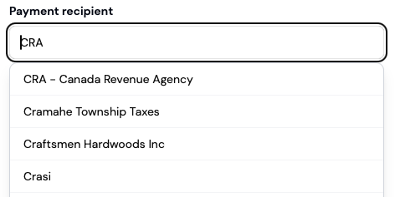
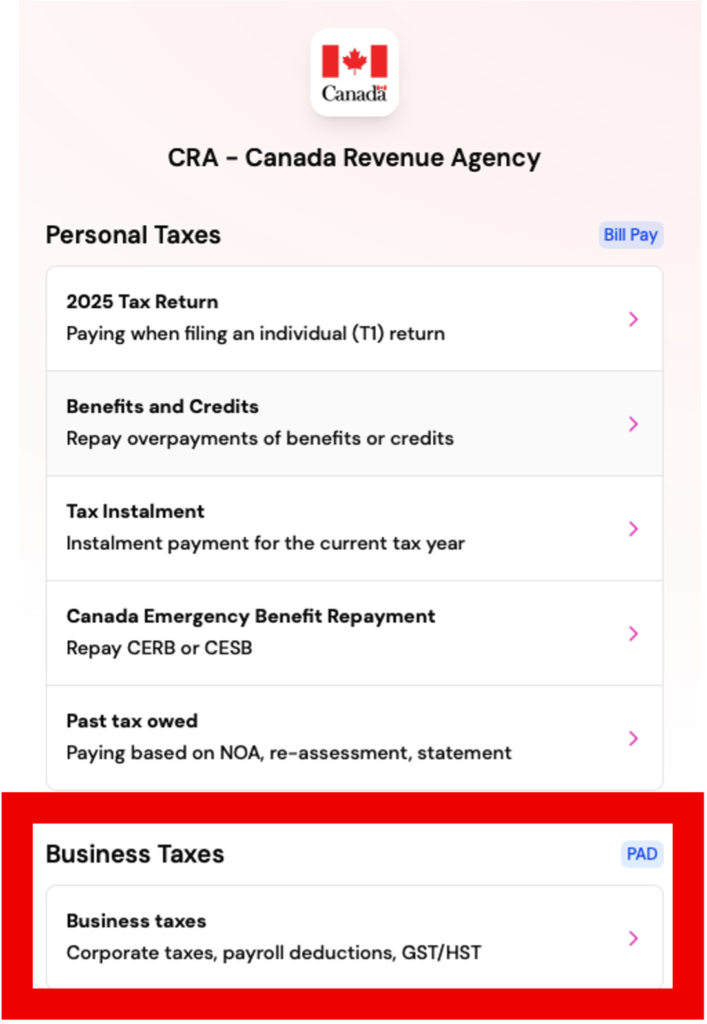
3. Select Business Taxes and on the next page, click Continue
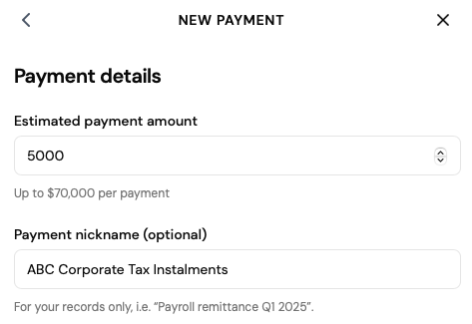
4. Enter your payment amount and add a nickname
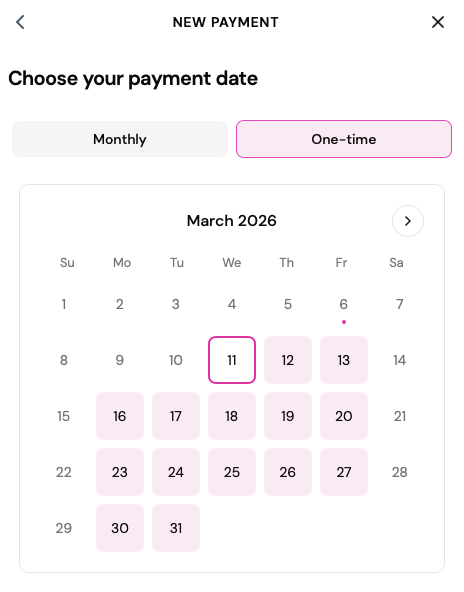
5. Select Monthly or One-time payment
6. Select the date you’d like payment to be withdrawn by the CRA and click continue.
Note:
Chexy will automatically charge your credit card 4-5 business days prior to this date.
Because the CRA requires at least 5 days lead time for creation of a PAD payment, you must select a date that is at least 5 days from the current date.
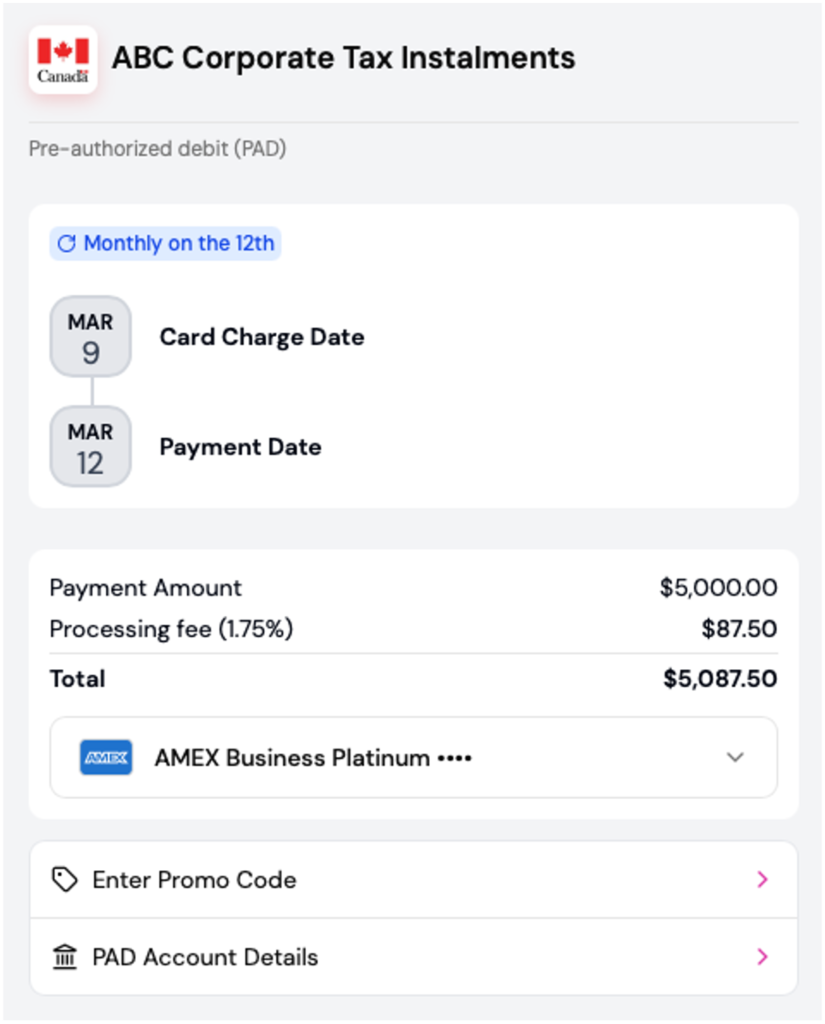
7. Review the card charge date and the payment date
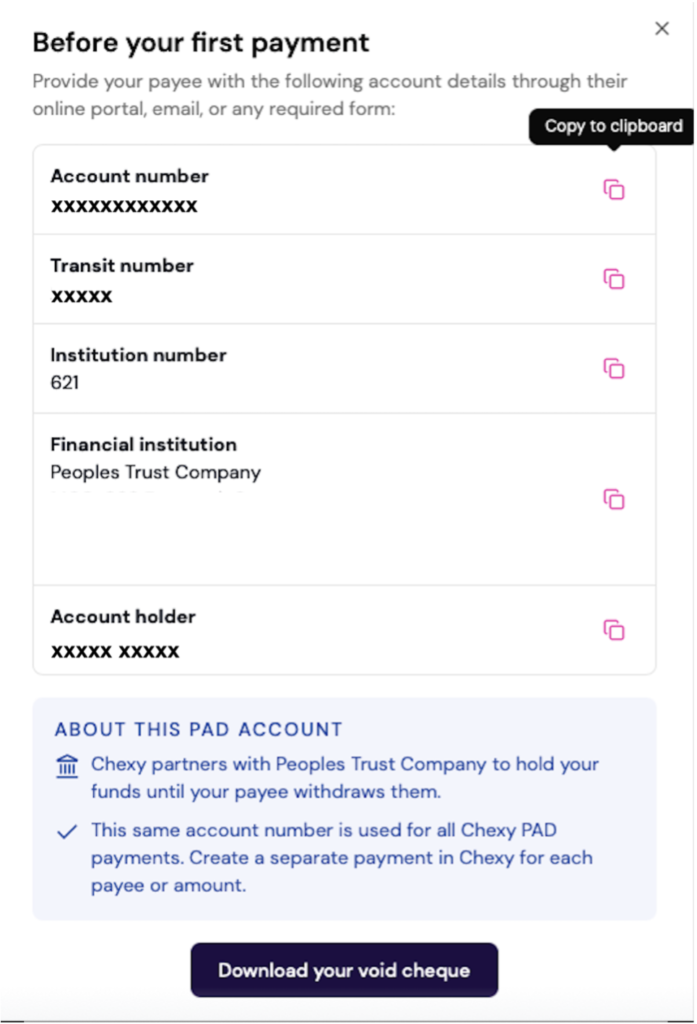
8. Click PAD Account Details and download the void cheque showing your Chexy PAD account, transit and institution numbers. This is required for Step 2.
9. Click Schedule Payment
Step 2: Set up or update your CRA PAD agreement
This authorizes the CRA to withdraw funds from your Chexy PAD account which you created in Step 1.
1. If you already have a PAD agreement:
2. Login to your CRA business account
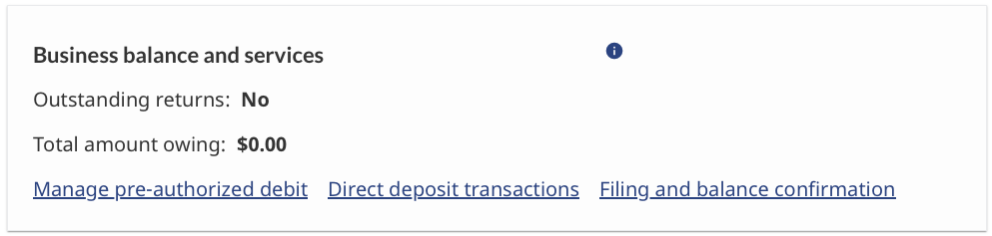
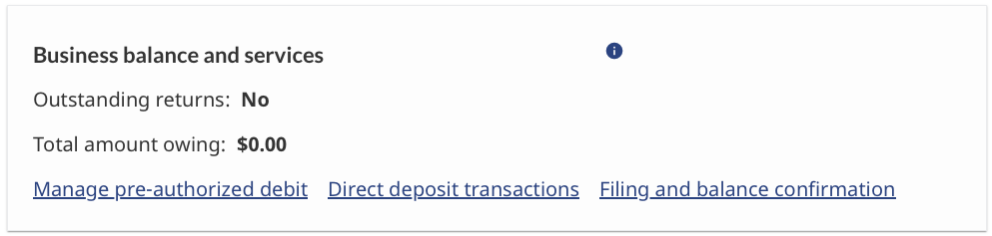
3. Click on Manage pre-authorized debit under “Business balance and services”
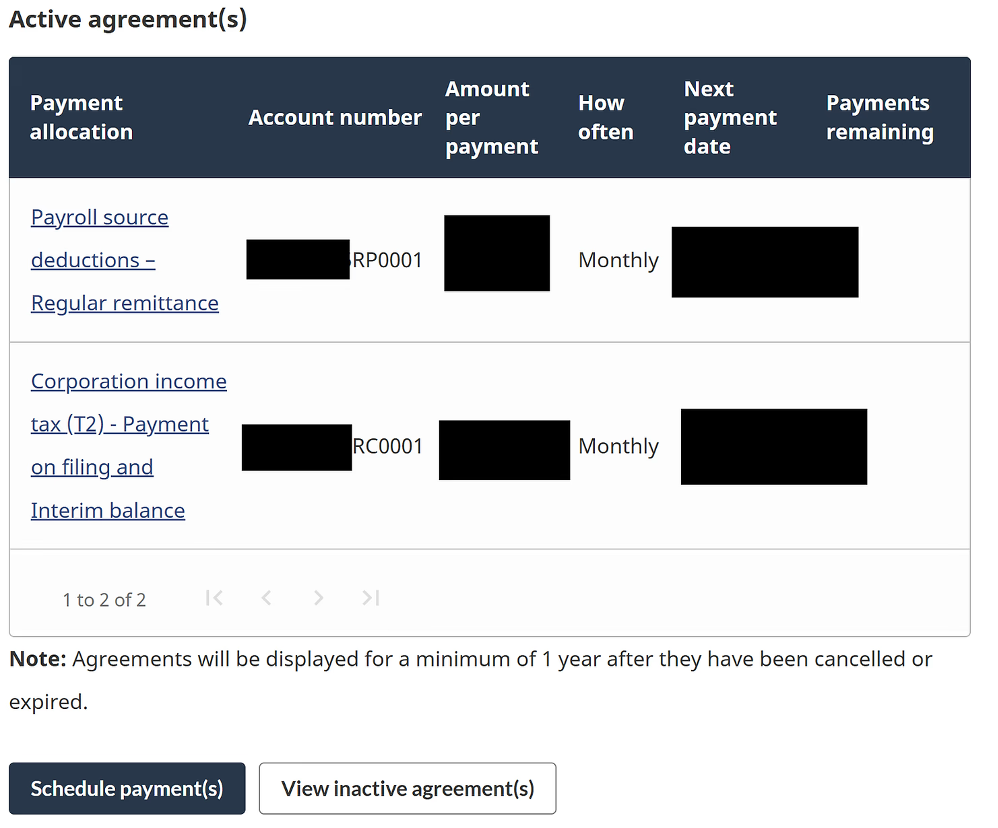
Select the agreement you’d like to edit under “Payment allocation”
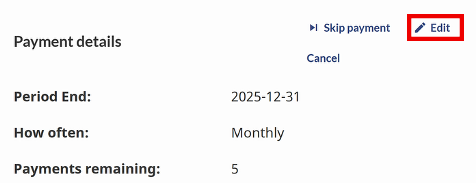
4. Select Edit to make changes to the PAD agreement
NOTE: To edit this, it must be 6 business days before the payment date
5. Ensure the “Next payment date” is on or after the “Funds available” date on Chexy
6. At the bottom, select Enter new banking information and input the information from the void cheque which was generated from Chexy in Step 1 – #9
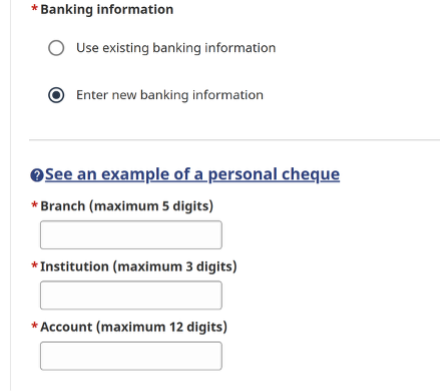
7. Review and submit. Repeat this process for each PAD agreement (e.g. payroll remittance, corporate tax installments, GST/HST remittance etc).
Note: Your Chexy PAD details on the void cheque will remain the same for each payment, but you must set up a separate Chexy payment for each tax you want to pay.
If you need to create a new PAD agreement, there are slight differences between monthly corporate tax installments and monthly payroll remittance.
Begin by logging in to your CRA business account.
For payroll remittance
1. Select Manage pre-authorized debit
2. Select Schedule Payment
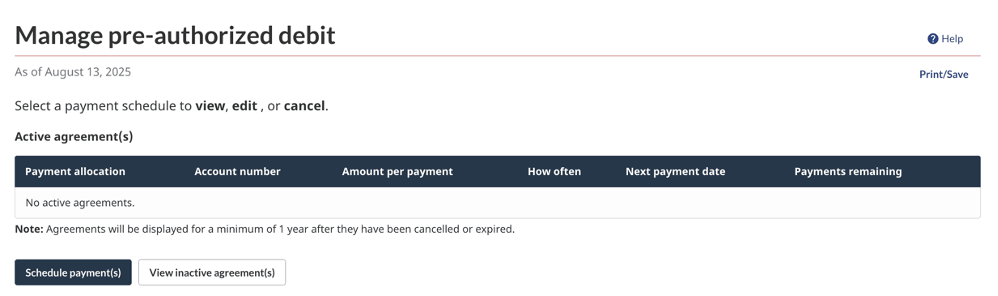
3. On the next screen select Start and, in the “Program account” drop-down menu, select RP0001-Payroll source deductions
4. In the “Payment allocation” drop-down menu, select Regular remittance
5. Enter the relevant details provided by your accountant:
Gross payroll
Number of employees
How often (frequency of payments) – must be one time or monthly
Number of payments
Amount per payment
First payment date – Ensure this is on or after the “Funds available” date on Chexy
6. Select Enter new banking information and input the information from the void cheque which was generated from Chexy in Step 1 – #9
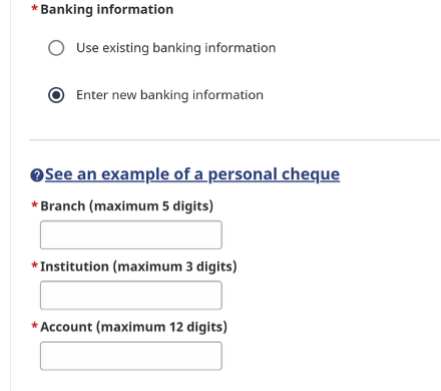
7. Review and submit.
Important notes about payroll remittances:
- If you change need to change the payment amount, you must update the amount both in Chexy and in your CRA account PAD agreement to keep everything in sync.
- Payroll remittances are due by the 15th of each month
- Do not schedule payroll taxes to pay after the 15th, as they may be misallocated as a late payment for this month instead of an early payment for next month
- Based on this, I suggest selecting a payment date of 1st to 11th for payroll remittances
For corporate tax installments (GST payments follow a similar approach)
1. Select Corporation income tax RC0001 in the menu on the left of the page
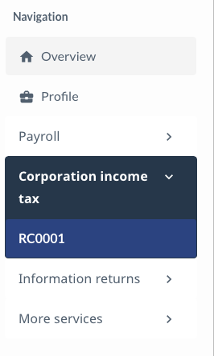
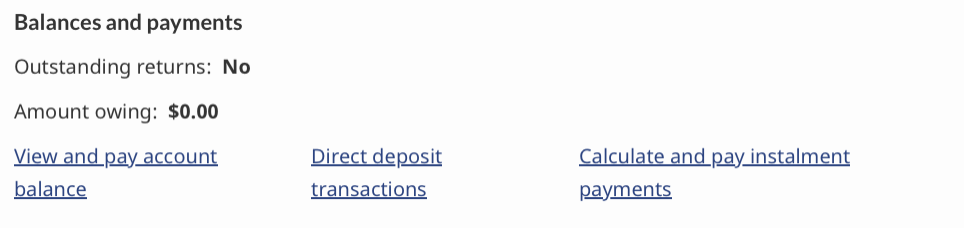
2. Select View and pay account balance
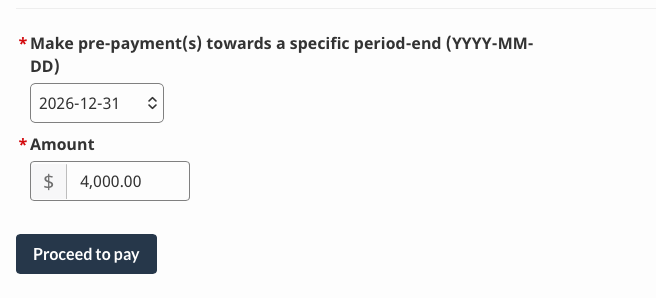
3. Enter the payment amount and the appropriate year and select Proceed to pay
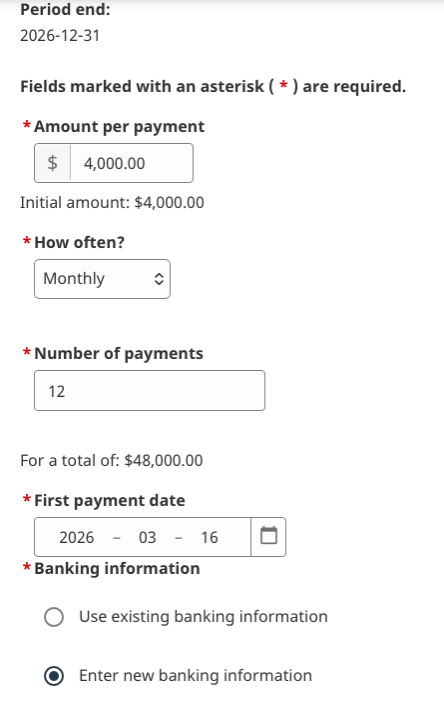
4. Select Start and Schedule one or more payments from your Canadian chequing account
5. Select How often you want your payments. Note that chexy only supports one time or monthly.
6. Enter desired number of payments and first payment date – Ensure this is on or after the “Funds available” date on Chexy
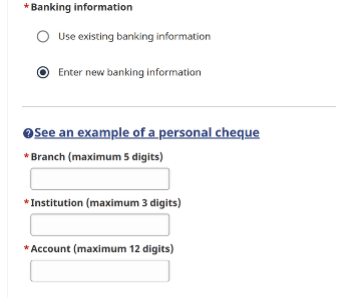
7. Select Enter new banking information and input the information from the void cheque which was generated from Chexy in Step 1 – #9
8. Review and submit.
Important notes about corporate tax installments (and GST/HST Payments):
- If you change need to change the payment amount, you must update the amount both in Chexy and in your CRA account PAD agreement to keep everything in sync.
Things to Keep in Mind
- Processing time: Plan ahead, as card payments via Chexy and PAD need 6 business days to reach the CRA. If you have a payment due sooner than this, you’ll have to pay normally outside of Chexy this month.
- Two payments for Quebec: If your business is in Quebec, remember you’ll need to pay both the CRA and Revenu Québec separately.
- Payment limits: The maximum amount you can send with PAD is $70,000 per payment. There are no daily, weekly, or monthly limits, and you can make multiple payments on the same day.
- Alberta residents: Chexy does not currently support corporate tax payments to the Government of Alberta.
Referrals
If you found this article helpful, please consider using one of my referral links to support the work I do. It costs you nothing extra and by using a referral you are often able to get elevated sign-up bonuses, access to points promotions, or a discount. Most importantly, this helps convince my wife that the hours I spend on this hobby are worth it!
For Amex credit cards earning Membership Rewards, the most powerful and flexible travel points in Canada, like the Cobalt, Gold, Business Gold, Platinum, and Business Platinum please reach out to learn about the best sign up bonus options.
If you shop a lot (>$550 month) at Costco and are interested in flying to Europe, the Brim Flying Blue Mastercard is a solid choice and can be applied for using this link.
After your flight is sorted out, you’ll need a hotel room. For Amex credit cards that earn Marriott Bonvoy points such as the Marriott Bonvoy Amex and Marriott Bonvoy Business Amex, please reach out to learn about the best sign up bonus options.
If you are going to book a hotel with cash, check Rove first. Think of Rove like Expedia but instead of earning Expedia points, you earn Rove Miles which are a transferrable points type that has 14 different airline/hotel transfer partners. Rove is a US site that allows you to book hotels (in USD) and gives you up to 10-20x (sometimes even more!) Rove Miles per dollar spent. If the hotel price is similar to what you would have booked elsewhere, use Rove and collect powerful transferrable points.
To supercharge your points earning, use Chexy via this link to pay for things like rent, taxes, professional fees and other expenses that normally cannot go on a credit card.
Once you have accumulated points, you will need to search for flight redemptions efficiently. Roame is the best tool to quickly search multiple programs, multiple destinations, across many dates. Please use the following link and use code PP10 for 10% off the Friends of Roame subscription.
If you are new to points and rewards and want to learn more about optimization and have a personalized approach, please reach out to me for a free one-on-one session.